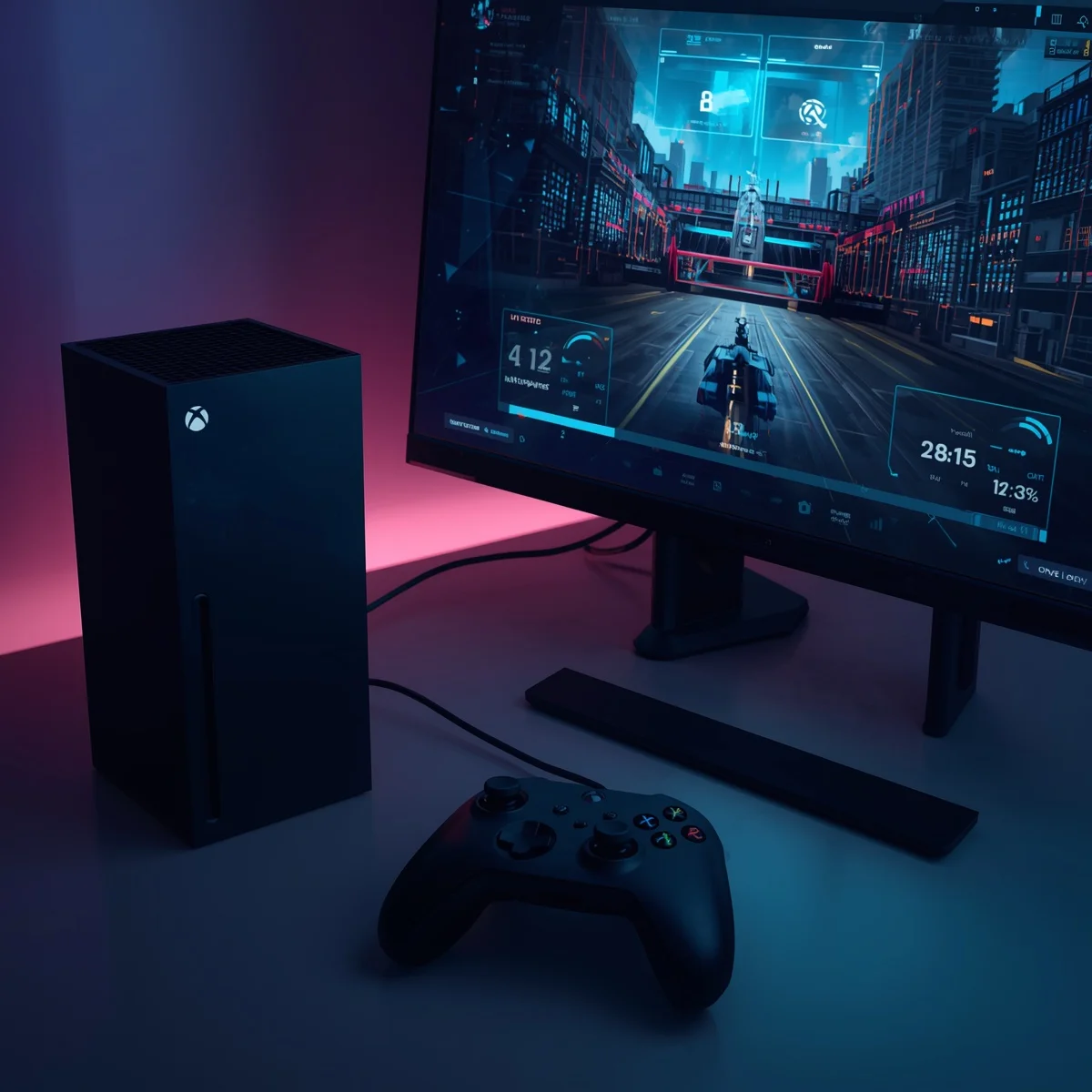
Low latency is essential for smooth and responsive gameplay. When latency is high, players experience input lag, delayed reactions, and slower performance in competitive games. If you enjoy fast-paced multiplayer titles, learning how to optimize Xbox Series X for low latency gaming can significantly improve your experience.
The Xbox Series X already offers powerful hardware, but proper settings and network optimization are necessary to get the best performance. In this guide, you will learn practical steps to reduce latency, improve connection stability, and make your gaming sessions faster and smoother.
Understanding Latency in Gaming
Latency refers to the delay between your action and the response from the game server. For example, when you press a button to shoot or move, the command travels through your network to the server and back to your console.
This delay is measured in milliseconds (ms). Lower numbers mean faster responses.
Typical latency levels in online gaming include:
- 0–20 ms: Excellent performance
- 20–50 ms: Very good for competitive gaming
- 50–100 ms: Acceptable but noticeable delay
- 100+ ms: High lag and poor gameplay experience
When optimizing your Xbox Series X, the goal is to reduce latency as much as possible.
Check Your Internet Connection First
Before changing console settings, make sure your internet connection is stable and fast.
Use a Wired Ethernet Connection
Wi-Fi is convenient but often causes higher latency due to interference and signal instability. A wired connection provides more consistent performance.
Benefits of Ethernet connection:
- Lower latency
- Stable packet transmission
- Reduced interference
- Better download and upload speeds
Connect your Xbox Series X directly to the router using an Ethernet cable for the best results.
Test Network Speed on Xbox
You can check your network performance directly from the console.
Steps:
- Go to Settings
- Select General
- Choose Network Settings
- Click Test Network Speed & Statistics
Look for these values:
- Latency: Lower is better
Packet Loss: Should be 0% - Download Speed: Higher improves game downloads
- Upload Speed: Helps multiplayer communication
If latency is high, network adjustments may be needed.
Adjust Xbox Series X Network Settings
Proper network configuration plays a major role when learning how to optimize Xbox Series X for low latency gaming.
Set Up an Open NAT Type
NAT (Network Address Translation) affects how your console communicates with other players and servers.
There are three NAT types:
- Open NAT – Best connection
- Moderate NAT – Limited connectivity
- Strict NAT – Difficult multiplayer connection
To check NAT type:
- Open Settings
- Select Network Settings
- View NAT Type
If your NAT is moderate or strict, enable UPnP (Universal Plug and Play) in your router settings or forward Xbox Live ports.
Common Xbox ports:
- 88 (UDP)
- 3074 (UDP/TCP)
- 53 (UDP/TCP)
- 80 (TCP)
- 500 (UDP)
- 3544 (UDP)
- 4500 (UDP)
An open NAT improves matchmaking speed and reduces latency
Enable Game Mode on Your TV or Monitor
Many TVs add processing effects that increase input delay. Game Mode removes these effects and allows faster response time.
Steps:
- Open your TV settings
- Enable Game Mode or Low Latency Mode
- Disable unnecessary image processing
Features to turn off include:
- Motion smoothing
- Noise reduction
- Dynamic contrast
- Extra video processing
A gaming monitor with low response time can also reduce input lag.
Use a Low Latency Gaming Display
Display hardware plays a major role in responsiveness.
Important features to look for:
- Low input lag (below 15 ms)
- High refresh rate
- HDMI 2.1 support
- Variable refresh rate
Monitors often provide lower latency than televisions. If you play competitive shooters or racing games, upgrading your display can make gameplay feel much more responsive.
Enable Variable Refresh Rate (VRR)
Variable Refresh Rate helps match the refresh rate of your display with the game’s frame output. This reduces screen tearing and improves smoothness.
To enable VRR on Xbox Series X:
- Go to Settings
- Select General
- Choose TV & Display Options
- Enable Variable Refresh Rate
VRR helps maintain consistent performance and reduces visual stutter.
Close Background Apps
Running multiple apps in the background can use system resources and network bandwidth.
To improve gaming performance:
- Close streaming apps
- Exit unused games
- Avoid downloads while playing
This ensures that your console focuses entirely on the active game.
Update Your Xbox System and Games
Software updates often include performance improvements and network optimizations.
To check for updates:
- Open Settings
- Select System
- Choose Updates
Always install the latest system update and keep your games updated. Developers often fix performance issues and server latency through patches.
Optimize Router Placement and Settings
Your home network setup directly impacts gaming latency.
Position Your Router Correctly
Place the router:
- In a central location
- Away from thick walls
- Away from electronic interference
If using Wi-Fi, shorter distance between console and router reduces signal delay.
Enable Quality of Service (QoS)
Many routers support QoS settings that prioritize gaming traffic.
Benefits of QoS:
- Reduces network congestion
- Prioritizes gaming packets
- Improves multiplayer stability
Set your Xbox Series X as the highest priority device.
Reduce Network Traffic in Your Home
Other devices using the internet can increase latency.
Common bandwidth-heavy activities include:
- 4K streaming
- Large downloads
- Cloud backups
- Video calls
During competitive gaming sessions, try to limit these activities to maintain stable performance.
Use Faster DNS Servers
DNS servers translate domain names into IP addresses. Using faster DNS servers can slightly improve connection speed.
Popular options include:
- Google DNS
- Cloudflare DNS
- OpenDNS
To change DNS on Xbox Series X:
- Open Network Settings
- Choose Advanced Settings
- Select DNS Settings
- Choose Manual
Enter your preferred DNS server.
This adjustment can improve server connection speed in some cases.
Choose Game Servers with Lower Ping
Some online games allow players to select specific server regions.
Choose servers that are geographically closer to you. Shorter physical distance reduces data travel time and lowers latency.
If the game does not allow manual selection, the system usually connects automatically to the nearest server.
Restart Network Devices Regularly
Sometimes network equipment develops temporary issues that increase latency.
Restarting devices can fix these problems.
Steps:
- Turn off Xbox Series X
- Restart your modem
- Restart your router
- Turn the console back on
This refreshes the network connection and may reduce ping spikes.
Monitor Packet Loss and Jitter
Latency is not the only factor affecting gameplay. Packet loss and jitter can also cause lag.
- Packet Loss: Data packets fail to reach the server
- Jitter: Variation in packet arrival time
High packet loss leads to teleporting characters, delayed actions, and unstable gameplay.
Regularly check network statistics on your Xbox to monitor these values.
Final Thoughts
Learning how to optimize Xbox Series X for low latency gaming can significantly improve your gaming experience. While the console already delivers excellent performance, proper network configuration, display settings, and hardware adjustments help unlock its full potential.
Start with a wired internet connection, ensure your NAT type is open, enable Game Mode on your display, and keep your console updated. Small adjustments like router optimization and background app management can also make a noticeable difference.
By following these steps, you can reduce lag, improve responsiveness, and enjoy smoother gameplay in both casual and competitive gaming sessions.