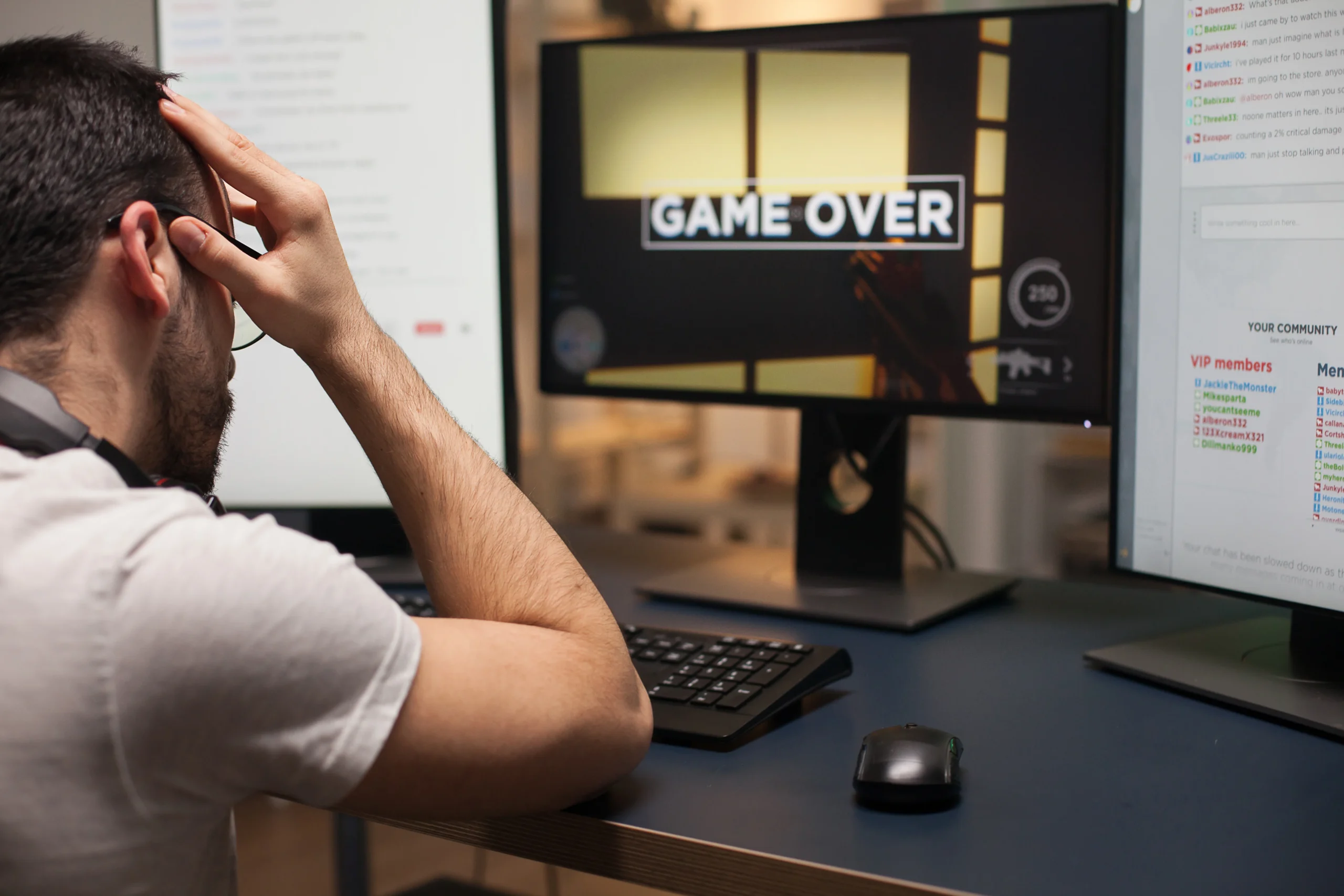
You are in the middle of an intense gaming session. Your health bar is full, your aim is on point, and then — crash. The game closes. No warning. No error message. Just silence.
If this sounds familiar, you are not alone. Game crashes on PC are one of the most common and frustrating problems gamers deal with. The good news is that most crashes have a clear cause, and most of those causes have a clear fix.
This article walks you through the seven most common reasons your game keeps crashing on PC and exactly what to do about each one.
What Causes Games to Keep Crashing on PC
Before jumping into the fixes, it helps to understand what is actually going wrong. Game crashes generally fall into two categories: hardware problems and software problems.
Hardware issues include things like your PC overheating, not having enough RAM, a failing power supply, or running a game your system simply cannot handle. Software issues include outdated drivers, corrupted game files, antivirus conflicts, or an outdated operating system.
Sometimes it is a mix of both. The key is figuring out which one is hitting you first.
Fix 1: Update Your Graphics Drivers
This is the first thing you should check, and it solves the problem more often than people expect.
Your GPU driver acts as the bridge between your game and your graphics card. When that bridge is old or broken, the game will crash — sometimes instantly, sometimes after a few minutes of play. Graphics-intensive games are especially sensitive to outdated drivers.
To update your drivers, go to the official website of your GPU manufacturer. If you have an NVIDIA card, visit nvidia.com and download the latest driver for your card model. If you use AMD, head to amd.com and do the same. Once downloaded, run the installer and restart your PC before launching your game again.
This step alone fixes a large number of game crash issues, so always start here.
Fix 2: Verify the Integrity of Your Game Files
Game files can become corrupted in many ways. A bad update, a sudden power cut, a failed download — any of these can leave your game with missing or broken files that cause it to crash at startup or mid-session.
Most game launchers give you a built-in tool to check this. On Steam, right-click the game in your library, go to Properties, then Local Files, and click Verify Integrity of Game Files. On Epic Games, click the three dots next to the game and select Verify.
The launcher will compare your local files against the server’s clean copies and fix anything that does not match. It usually takes just a few minutes and can make a big difference.
Fix 3: Check If Your PC Meets the Game’s System Requirements
This one is easy to overlook, especially when buying games on impulse. Every game publishes minimum and recommended system requirements, and if your PC falls short, the game will either run poorly or crash regularly.
Check your PC specs by pressing Windows + R, typing dxdiag, and hitting Enter. This opens a window showing your processor, RAM, and GPU. Compare those numbers against the game’s requirements, which you can find on the game’s store page.
If your PC meets the minimum but not the recommended specs, try lowering the in-game graphics settings. Reducing resolution, turning off ray tracing, and lowering shadow quality can reduce the load on your hardware and stop the crashes.
Fix 4: Fix Overheating — Cool Down Your PC
Heat is a silent killer for gaming PCs. When your CPU or GPU gets too hot, your system will crash the game to protect itself from damage. This often happens after 10 to 30 minutes of play, which is right when your hardware has been running at full load long enough to heat up.
Download a free temperature monitoring tool like HWMonitor or MSI Afterburner and check your temperatures while gaming. Generally, you want your GPU to stay below 85 degrees Celsius and your CPU below 90 degrees Celsius under load. If you are seeing numbers higher than that, your cooling setup needs attention.
Practical steps include cleaning the dust out of your PC with compressed air, making sure all your case fans are working, repasting the CPU if it is more than a few years old, and ensuring your PC has good airflow in the room where it sits.
If you have been overclocking your CPU or GPU, that will also raise temperatures significantly. Returning your components to their default clock speeds is a quick way to check if overclocking is the root cause.
Fix 5: Disable or Adjust Your Antivirus
Antivirus programs are protective by nature, and sometimes they are too protective. They can misidentify a game’s executable file as a threat, block it from accessing system resources, and cause it to crash.
To test whether your antivirus is the problem, temporarily disable real-time protection and then launch your game. If it runs without crashing, the antivirus was the culprit. The right fix is not to leave your antivirus off permanently — instead, add your game’s installation folder as an exception or trusted location in your antivirus settings.
On Windows Security, go to Virus and Threat Protection, then Manage Settings, and look for the Exclusions option to add the game folder.
Fix 6: Free Up Storage Space and Close Background Programs
Games need breathing room on your storage drive to save temporary files, load new assets, and operate smoothly. If your storage is nearly full, the game may crash because it cannot write the data it needs.
A good rule of thumb is to keep at least 15 to 20 percent of your drive free at all times. Go through your downloads folder, clear out programs you no longer use, and empty the recycle bin.
Background programs are another hidden culprit. Web browsers with many open tabs, video streaming apps, Discord with hardware acceleration on, and other running software all compete for your RAM and CPU. Before gaming, close anything you do not need. You can press Ctrl + Shift + Esc to open Task Manager and see what is eating up your resources.
Fix 7: Update Windows and Check Your Power Supply
Running an outdated version of Windows can create compatibility problems with modern games. Many games are built for the latest Windows builds and rely on updated system files and DirectX versions. Go to Settings, then Windows Update, and install any pending updates.
If you have done all of the above and your game still crashes, especially if your whole PC shuts down rather than just the game closing, your power supply unit may be the issue. GPUs under full gaming load draw a significant amount of power. If your PSU cannot deliver enough wattage consistently, the system will crash or shut off as a safety measure.
Check your total system power draw using an online wattage calculator and compare it against your PSU’s rated output. If your PSU is underpowered or several years old and showing signs of instability, upgrading it can solve crashes that nothing else will fix.
Read Also: How to Optimize Gaming PC for Ray Tracing
Quick Troubleshooting Checklist
When your game crashes again, work through this order before anything else:
Start by restarting your PC — this clears temporary errors and frees up memory. Then update your GPU drivers, verify your game files, check your temperatures, and lower your graphics settings if needed. If the game still crashes, check your antivirus exclusions, free up storage, close background apps, and make sure Windows is fully updated.
Most gaming PC crash problems are solved within those first few steps. Only if nothing works should you look deeper into hardware diagnostics like memory testing or PSU replacement.
Final Thoughts
A game that keeps crashing on PC is almost always fixable. The cause is usually something straightforward — an old driver, a corrupt file, a hot GPU, or a hungry antivirus. Working through the seven fixes above in order gives you the best chance of finding the problem without wasting time.
Take it one step at a time, test the game after each fix, and you will almost certainly land on the solution. Once your games are running clean, the only crashes you will have to deal with are the ones happening to your enemies on screen.